Logging in to DM Win works the same way on every device: open our platform in a browser, choose phone number or email, enter your password and tap Log in. One account covers Android, iPhone and PC, so your game history, activity progress and withdrawal history follow you wherever you play. Below we show the exact steps for each device, from the DM Win Android setup to iPhone and PC, how to put DM Win on your home screen and how to stay logged in on your own device.
Our login screen itself never changes. It has a Phone number tab (with +91 India already selected), an Email tab, a password box, a Remember password tick box and a Forgot password? link. What changes from device to device is how you open it and how you keep it one tap away.
DM Win Android Setup (Chrome)
Most of our players in India play on Android, and Chrome is the browser we recommend there. It keeps your DM Win Android login reliable and makes adding our platform to your home screen simple.
- Open Chrome and go to the official DM Win website.
- Tap Log in at the top of the page.
- On the Phone number tab, check that +91 India is shown and enter your 10-digit mobile number. If you registered with email, switch to the Email tab instead.
- Enter your password. Passwords are case-sensitive, so watch for automatic capital letters from your keyboard.
- Tick Remember password if this is your own phone, then tap Log in.
Add a DM Win Android shortcut to your home screen
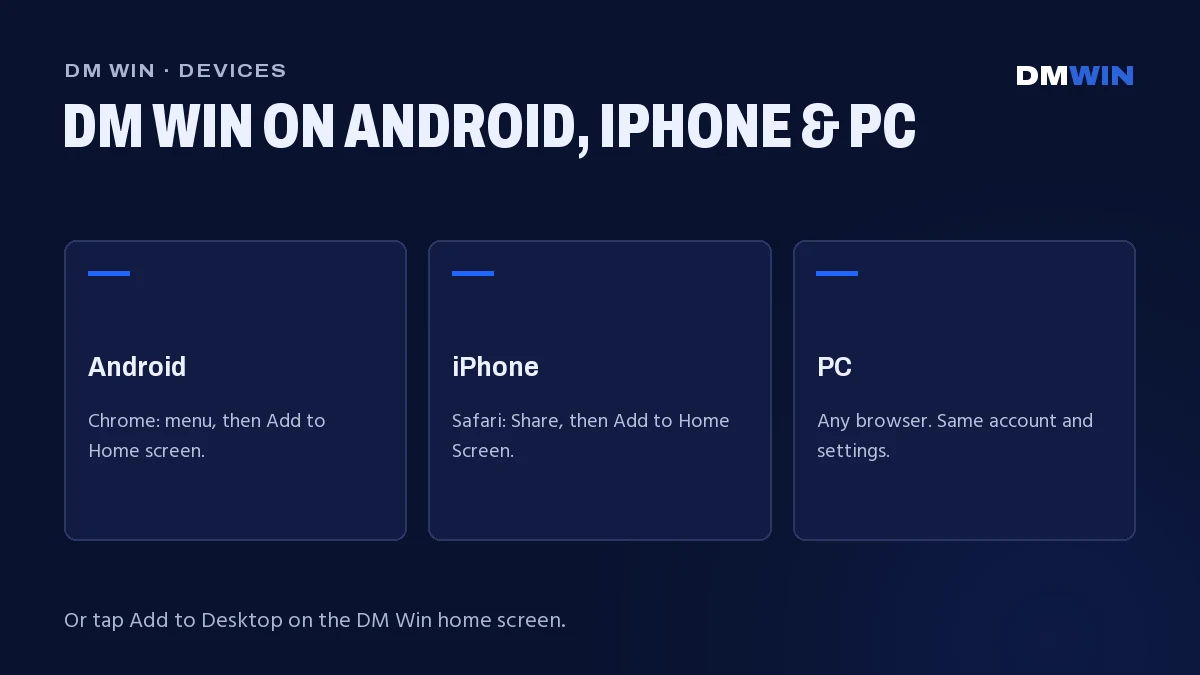
Once you are logged in, tap Add to Desktop on our platform home screen. You can also open the Chrome menu (the three dots at the top right) and choose Add to Home screen. Give the shortcut a name, tap Add, and the DM Win Android app shortcut appears next to your other apps. From then on, your DM Win login is one tap away, with nothing extra to install.
DM Win on iPhone (Safari)
On iPhone and iPad, use Safari. It is the browser that lets you place our platform on your home screen as an app-style icon.
- Open Safari and visit indiadmwin.com.
- Tap Log in.
- Choose the Phone number or Email tab, whichever you registered with.
- Enter your number (10 digits, with +91 India selected) or your email address.
- Type your password, tick Remember password on your own iPhone and tap Log in.
Add DM Win to your iPhone home screen
Tap Add to Desktop on our platform home screen, or tap the Share icon at the bottom of Safari (the square with an arrow pointing up), scroll down and choose Add to Home Screen, then tap Add. The DM Win icon now opens our platform in full screen, just like an app. iOS keeps this shortcut separate from your Safari tabs, so you may need to log in once inside it the first time you open it.
DM Win on PC (Windows and Mac)
Playing DM Win on PC suits longer sessions. A larger screen is great for watching WinGo periods, following the countdown and browsing our slots and live casino tables. Any up-to-date browser works: Chrome, Edge, Firefox or Safari on Mac.
- Open your browser and go to indiadmwin.com.
- Click Log in.
- Choose the Phone number or Email tab and enter your details.
- Enter your password and click Log in.
- Bookmark the page with Ctrl + D on Windows or Cmd + D on Mac so you always come back to the right place.
Our platform is designed mobile-first, so the layout on a wide monitor may look a little different from a full desktop website. Every button and game works exactly as it does on your phone.
DM Win on Android, iPhone and PC: Comparison Table
Here is how logging in compares across the devices our players use most.
| Android | iPhone | Windows / Mac PC | |
|---|---|---|---|
| Recommended browser | Chrome | Safari | Chrome, Edge, Firefox or Safari |
| Login options | Phone (+91) or email + password | Phone (+91) or email + password | Phone (+91) or email + password |
| One-tap access | Add to Desktop or Chrome menu → Add to Home screen | Add to Desktop or Share → Add to Home Screen | Browser bookmark |
| Install needed | No | No | No |
| Remember password | Yes, on your own phone | Yes, on your own iPhone | Only on your personal computer |
| Best for | Daily play on the go | Daily play on the go | Longer sessions on a big screen |
Switching Devices With One DM Win Account
You never need a second account to play on a new device. Your DM Win account lives on our servers, not on your phone, so everything is waiting for you wherever you log in:
- Withdrawal history for every request you have made.
- Game records for WinGo, K3, 5D, TrxWingo and every other game.
- Activity progress, including your daily check-in streak and VIP Journey level.
- Your invite code and team in the Promotion tab.
To move from your phone to your laptop, simply log in on the laptop with the same phone number or email and password. If you are buying a new phone, there is nothing to transfer: open our website on the new phone, log in, and add DM Win to the home screen again. On a new Android phone, simply repeat the DM Win Android setup above.
Use the same login method every time. If you registered with your phone number, always use the Phone number tab, even on PC. Your account is linked to the details you signed up with.
Staying Logged In on Your Own Device
On your personal phone or computer, a few habits keep logging in quick:
- Tick Remember password when you log in. Do this only on a device that nobody else uses.
- Use a normal browser tab, not incognito or private mode, which clears your session when it closes.
- Open DM Win from the home-screen icon or your bookmark, so you land on the right page every time.
- Keep your browser updated. Current versions of Chrome give the smoothest DM Win Android experience, and the same goes for Safari on iPhone.
- Keep your phone’s screen lock on, so a remembered password stays protected if you leave your phone somewhere.
If you keep getting logged out or the login screen will not load, switch between Wi-Fi and mobile data, then open DM Win again from indiadmwin.com.
Logging Out on Shared Devices
Sometimes you may log in on a family member’s phone, an office computer or a friend’s laptop. On any device that is not yours:
- Do not tick Remember password on the login screen.
- When you finish playing, open the Account tab and log out of your account.
- If the browser offers to save your password, choose Never or Not now.
- Close the browser tab after logging out.
Your password is yours alone. Our team will never ask for it. If you think someone else has seen it, log in on your own device and contact 24/7 customer service from inside your account to set a new one.
New to our platform? Our page on your first DM Win login walks you through the first ten minutes after you sign up. For everything else about DM Win, from games to promotions, visit the DM Win game login page on our homepage. DM Win is for players aged 18 and over. Please play responsibly.
DM Win on Android, iPhone and PC: FAQ
Can I use the same DM Win account on Android, iPhone and PC?
Yes. One account works on every device, and your DM Win Android login uses the same details as on iPhone and PC. Log in with the same phone number or email and password, and your history and activity progress are all there.
Do I need to install anything to play DM Win on my phone?
No. Log in through your browser, then tap Add to Desktop on our platform home screen or use your browser’s Add to Home Screen option. DM Win then opens with one tap like an app, and on Android the DM Win Android shortcut sits right beside your other apps.
Which browser is best for the DM Win login on iPhone?
Use Safari. It lets you add DM Win to your home screen through Share → Add to Home Screen, and keeps your session when you tick Remember password.
Can I play DM Win on a laptop or desktop computer?
Yes. Open indiadmwin.com in Chrome, Edge, Firefox or Safari, log in with your usual details and bookmark the page for next time.
Should I tick Remember password?
Only on your own device. On a shared or public device, leave it unticked and log out from the Account tab when you finish.
Will my VIP level and check-in streak carry over to a new phone?
Yes. Your progress is saved to your account, not your phone, so it carries over as soon as you log in on the new device.